
Thank you!
We will send an invite over Email.
We will send an invite over Email.
Oops! Something went wrong while submitting the form.
Integrate Granola with Aithon using Zapier
Aithon’s integration with Granola lets you unlock deeper insights into your pipeline by analyzing call transcripts directly from your CRM.
Assumptions -
- An active Aithon account
- A Granola Business or Enterprise account
- A Zapier account
Get a Zapier Invitation
- Work with our team to obtain a Zapier invitation (support@aithon.ai)
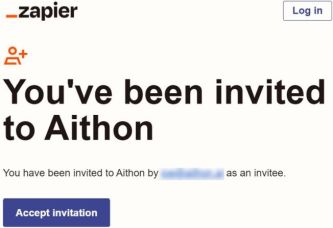
- Click the Invitation Link: Inside the email, click on the "Accept Invite" or similar link. This will direct you to the Zapier website.
- Locate the Invitation Email: Open your email inbox and search for an email from Zapier with the subject line "You've been invited to Zapier!"
Create or Log In to Your Zapier Account
- Upon clicking the invitation link, you will be prompted to either create a new Zapier account or log in to an existing one.
- New Users: If you don't have a Zapier account, follow the on-screen instructions to create one. You can sign up with your email address or use a Google or Microsoft account.
- Existing Users: If you already have a Zapier account, simply log in with your credentials.
Access the Shared Zap Template
- Once you have successfully logged in or created your account, you will be directed to a page that includes the shared Zap template.
- Review the Template: Take a moment to review the pre-configured Zap template. This template is designed to help you get started quickly with common automation tasks.
Customize and Activate Your Zap
- Now it's time to customize the Zap template to fit your specific needs and activate it.
- Click "Use this Zap": On the shared Zap template page, locate and click the "Use this Zap" button.
- Connect Your Accounts: Zapier will guide you through connecting the necessary applications to your Zap. For example, if the Zap involves Granola and another app, you will be prompted to authorize Zapier to access your Granola account. Follow the on-screen prompts to grant these permissions.
- Customize Your Zap (if needed):
- Trigger: The trigger is what starts your Zap. Review the trigger settings and adjust them if necessary. For instance, if the trigger is a new event in Granola, ensure the correct event type is selected.
- Action: The action is what your Zap does after the trigger occurs. Review the action settings and modify them as needed. For example, if the action is to send data to another application, customize the recipient and data fields.
- Test Your Zap: Before turning on your Zap, it's highly recommended to test it to ensure it's working as expected. Zapier provides a testing feature that allows you to simulate the trigger and see the action in real-time.
- Turn On Your Zap: Once you are satisfied with your Zap and have tested it successfully, toggle the switch to "On" to activate it. Your Zap will now run automatically whenever the trigger event occurs.
Setting Up the Granola Connector
- This section details how to specifically set up the Granola connector within your Zap.
- Select Granola as the App: When prompted to connect an app for your Trigger, search for and select "Granola."
- Choose a Granola Event: You will then need to select a specific event in Granola that will act as the trigger for your Zap. Common events might include:
- New Order
- New Customer
- Updated Product
- (Choose the event relevant to your Zap's purpose).
- Connect Your Granola Account:
- Click "Sign in to Granola" within Zapier.
- A new window will appear, prompting you to log in to your Granola account. Enter your Granola credentials.
- You may be asked to grant Zapier permission to access your Granola data. Click "Allow" or "Authorize" to proceed.
- Once connected, you will see your Granola account listed in Zapier.
- Customize Granola Trigger Options: Depending on the chosen Granola event, you might have additional options to refine the trigger. For example, you might be able to filter by specific order statuses or customer types. Configure these as needed.
- Test Granola Trigger: Before proceeding, Zapier will attempt to find a recent event in your Granola account based on your selected trigger and options. This helps ensure the connection is working correctly.
Next Steps and Support
- Congratulations on creating your first Zap!
- Explore Zapier: Feel free to explore other Zapier features and discover more ways to automate your workflows.
- Need Assistance? If you encounter any issues or have questions, please reach out to support@aithon.ai for support.
- Helpful Resources: For additional guidance, you can refer to the official Zapier help documentation